☁️ Cloud Setup: Core Functionalities with AWS Kinesis, Firehose and S3
MSight integrates tightly with AWS to provide reliable, scalable data ingestion from roadside edge devices. This section walks you through the minimal cloud setup needed to enable MSight’s core functionalities.
Once completed, your MSight deployment will be ready to receive, store, and organize real-time data from edge devices.
🗂️ 1. Set Up Data Accommodation
MSight uses:
- AWS Kinesis Data Streams to receive real-time data from the edge
- AWS Kinesis Firehose to deliver processed data into
- AWS S3 for long-term storage and organization
The steps below guide you through configuring these three components.
📦 Step 1 — Create an S3 Bucket
MSight stores all streamed data in Amazon S3.
- Go to the AWS S3 Console: https://console.aws.amazon.com/s3
- Click “Create bucket”
- Enter a bucket name (e.g.,
msight-data-yourcity) - Leave all settings as default (unless you have a specific compliance requirement)
- Scroll down and click “Create bucket”
That’s it — your storage layer is ready.
🔄 Step 2 — Create a Kinesis Data Stream
The Data Stream receives messages from MSight Edge, including sensor outputs and metadata.
- Open the AWS Kinesis Console: https://console.aws.amazon.com/kinesis
- Click “Create data stream”
- Enter a stream name
- Under Capacity mode, choose: Provisioned
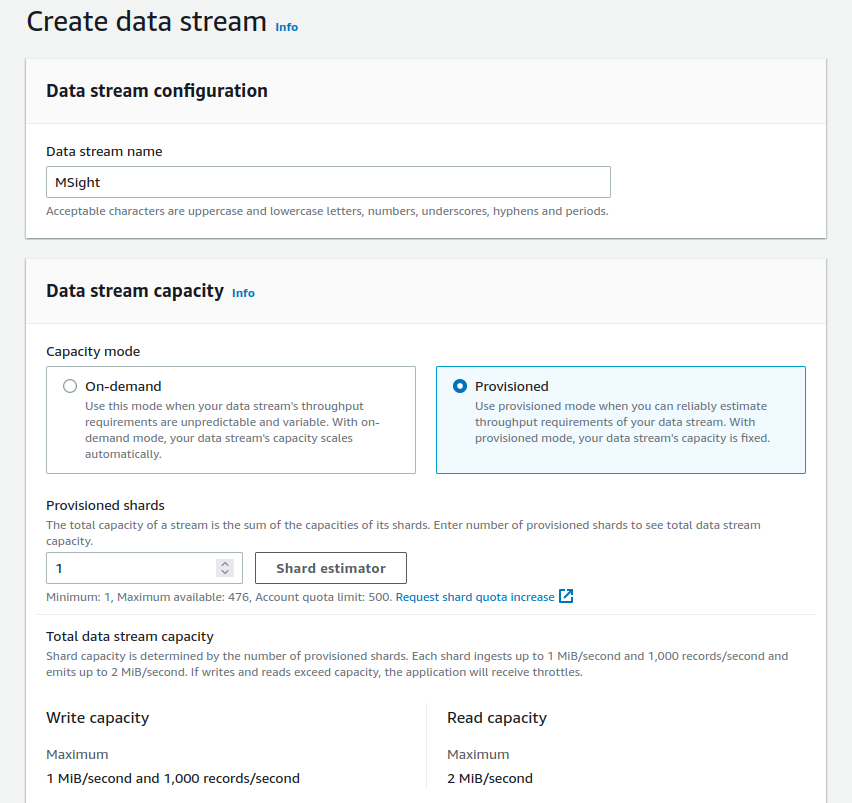
📏 How many shards do I need?
Kinesis assigns 1 MiB/sec per shard. Each sensor consumes bandwidth according to its data rate.
Use this guideline:
One shard per 1 MiB/sec of data per sensor
Example
If you have 4 sensors, each producing 1.6 MiB/sec:
- Each sensor needs 2 shards
- Total shards = 4 × 2 = 8
Note
To estimate your exact shard requirement, expand the "Example record" section in AWS Kinesis to see your sensor’s expected data output.
🔥 Step 3 — Configure Kinesis Firehose (Data Delivery Stream)
Firehose moves data from Kinesis → S3, applying dynamic partitioning so your data lands in the correct folder structure.
- Go to Kinesis → Delivery Streams
- Click “Create delivery stream”
- For Source, select: Kinesis Data Stream
- For Destination, select: Amazon S3
- Choose the Data Stream and S3 Bucket you created above
📂 Enable Dynamic Partitioning
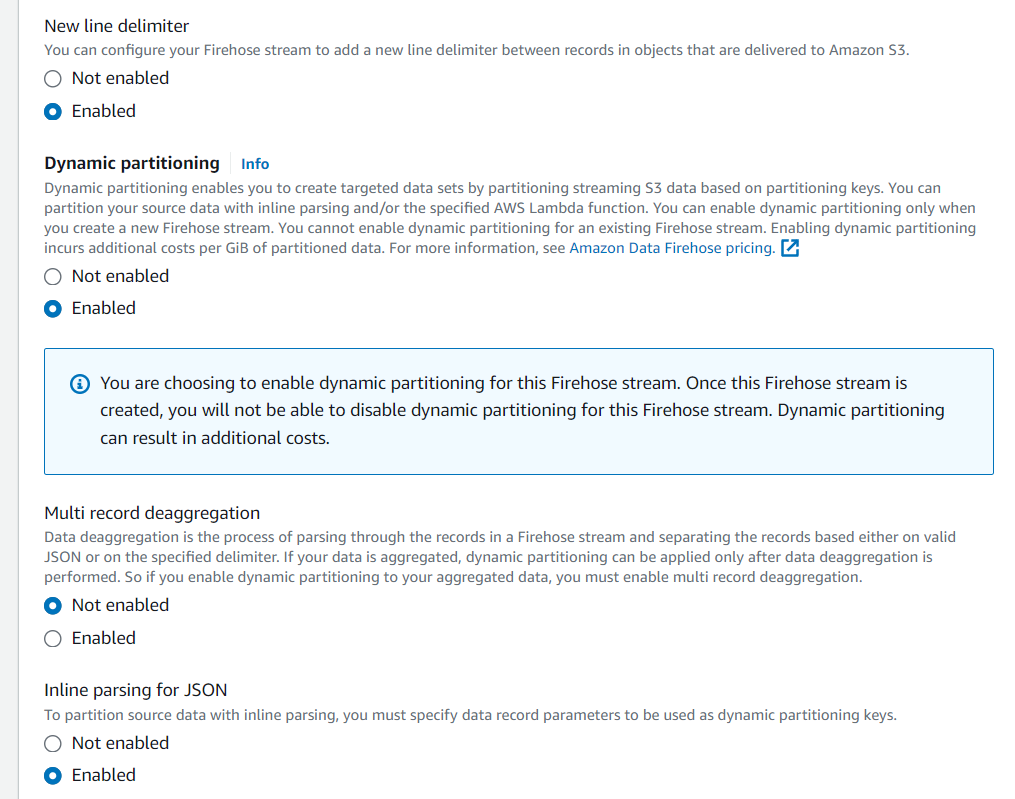
To ensure MSight stores data cleanly organized:
- Enable Dynamic Partitioning
-
Enable:
-
New line delimiter
- Inline parsing for JSON
Your screen should look similar to this:
🔑 Create Partition Keys
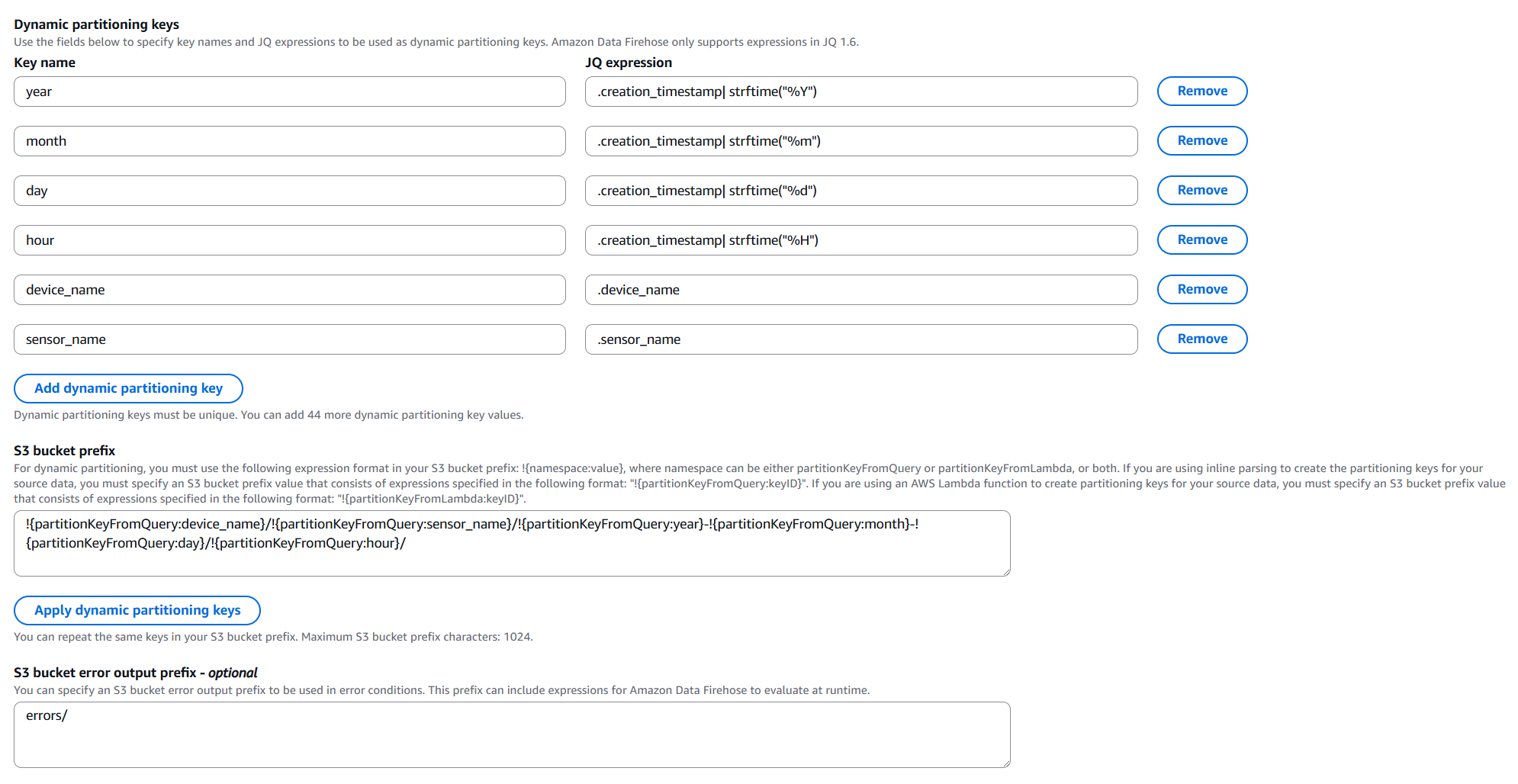
Add dynamic partitions in the Firehose configuration:
yearmonthdayhoursensor_name→ using JSON path:
.sensor_name
Firehose will extract these values from incoming JSON records.
📁 S3 Prefix Format
Use the following prefix to organize data per device, per sensor, per date:
!{partitionKeyFromQuery:device_name}/!{partitionKeyFromQuery:sensor_name}/!{partitionKeyFromQuery:year}-!{partitionKeyFromQuery:month}-!{partitionKeyFromQuery:day}/!{partitionKeyFromQuery:hour}/
We recommend setting:
- Error prefix:
error/
This ensures misformatted records are sent to an “error/” folder instead of being silently dropped.
🎉 Setup Complete!
Your cloud infrastructure is now fully configured to:
- Ingest data from MSight Edge
- Organize data by device, sensor, and timestamp
- Store all raw sensor outputs in S3
- Automatically handle partitioning and JSON extraction
Your MSight system is now ready to run with its core functionality enabled.